Suppliers
The Suppliers page tracks the businesses that supply your inventory items and products. Linking suppliers to items and products helps you keep purchasing information organized and accessible.
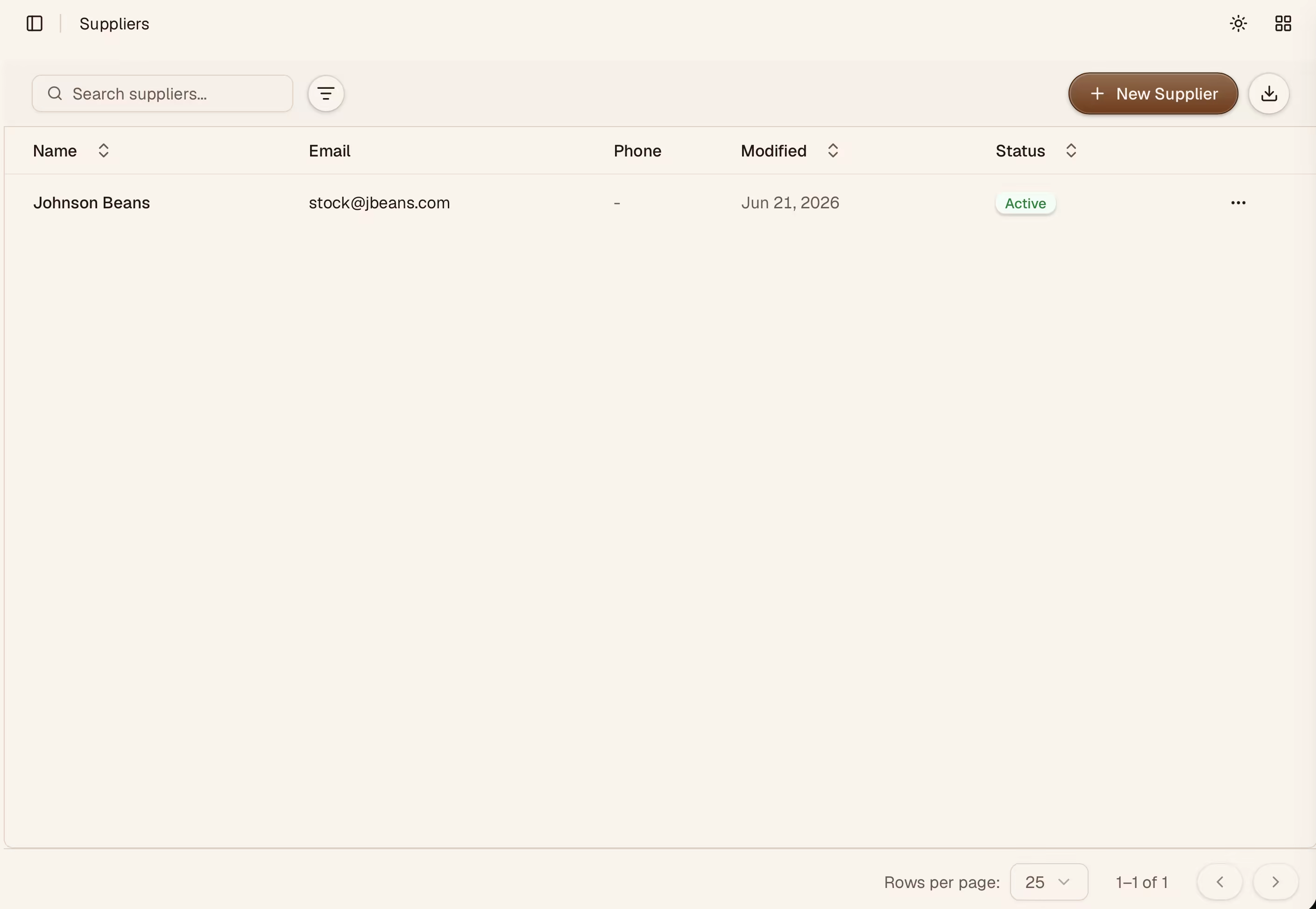
Adding a Supplier
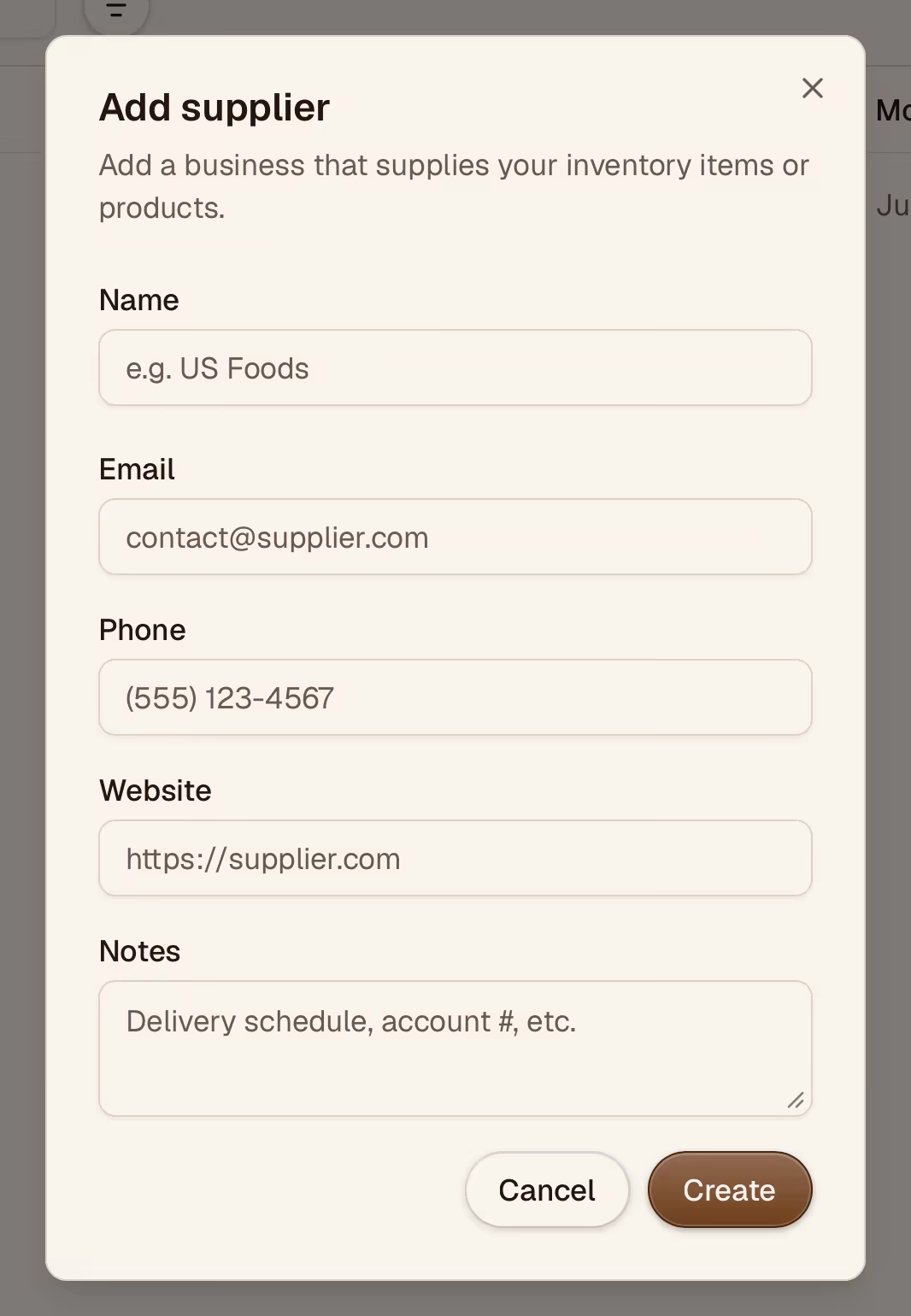
Click New Supplier in the top-right corner. Fill in:
- Name — the business or vendor name (required)
- Email — primary contact email
- Phone — contact phone number
- Website — supplier's website
- Notes — delivery schedules, account numbers, or other internal notes
Filtering and Search
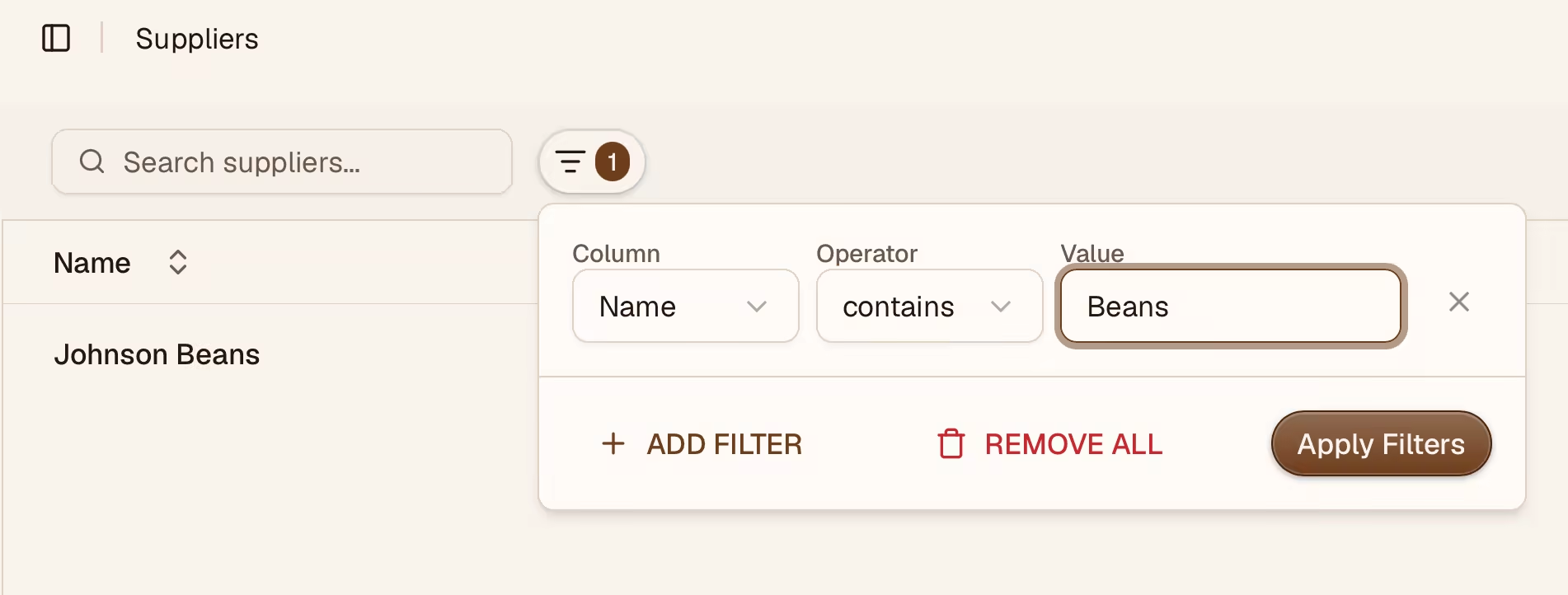
Use the search bar to find suppliers by name. The grid supports filtering and sorting by name, email, and status. Archived suppliers are hidden by default but can be shown using the status filter.
Editing and Archiving
Click any supplier row to open the detail panel. You can update any field inline. To remove a supplier, archive it — archived suppliers are hidden from the active list but preserved in historical records. You can also permanently delete a supplier from the actions menu.

Linking Suppliers to Items
Open an inventory item and use the Suppliers autocomplete in the detail sheet to link suppliers. Each item can have multiple suppliers, and each supplier can supply multiple items.
Linking Suppliers to Products
Open a product and use the Suppliers autocomplete in the overview tab to link suppliers. You can also add suppliers when creating a new product.