Locations
Locations represent the physical stores or sites your organization operates. Inventory is tracked separately per location, so you always know the stock situation at each site.

Adding a Location
Click Add location and fill in:
| Field | Description |
|---|---|
| Name | The store or site name (e.g., "Downtown Cafe") |
| Address | Optional — used on exports and reports |
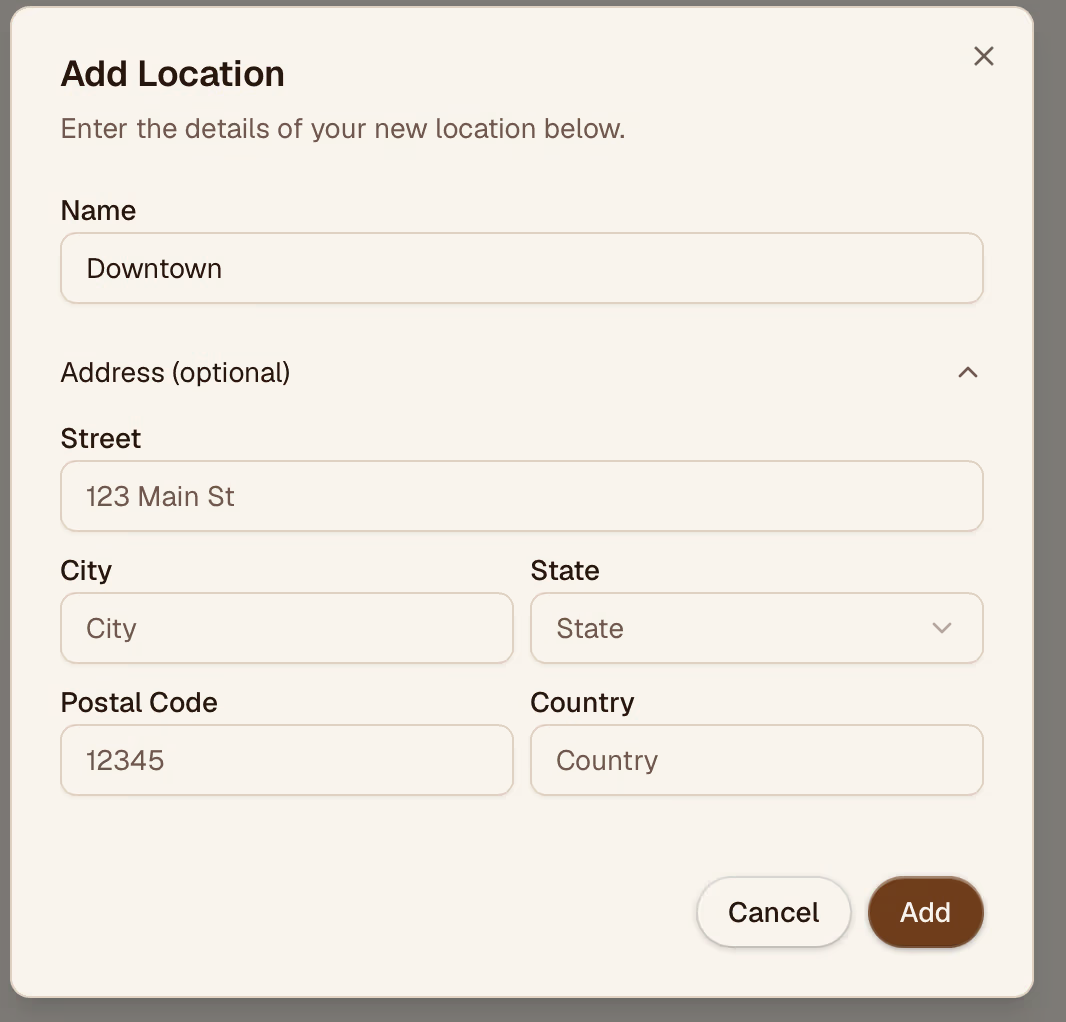
After saving, the location appears in the location switcher in the sidebar.
Switching Locations
Click the location name in the sidebar to open the location picker. Select any location to switch your active context — all inventory data, orders, and reports update to reflect the selected site.
Editing a Location
Click a location to update its name or address. These changes are reflected immediately across the app.
Removing a Location
A location can only be removed if it has no inventory items linked to it. Move or archive items first, then delete the location.
Role-Based Access
Team members with the Admin role can view locations but cannot add or remove them — that action is restricted to Owners. If the add/remove buttons are not visible, your account does not have the required permission.